
How to make a Wipe Me Down AI video: illustrated photo guide
Follow real site screenshots to choose two half-body photos, pick a background, generate and download your duo dance.
Last updated: 2026-10-14
All screenshots below show the English interface.
Use our Wipe Me Down AI video generator on wipemedownai.com to turn two individual photos into a duo dance video. Upload your portraits, choose a background, then confirm generation. Follow the steps below with two clear half-body photos; the screenshots show our actual creator and a completed video with fictional people.
Choose photos · Pick a background · Confirm generation · Watch and download
1. Choose clear half-body photos
We recommend a front-facing portrait framed from the chest or waist up. Show the face, hair, shoulders and upper-body clothing clearly. Keep the face large enough to see, with even lighting and unobstructed eyes and mouth. Half-body photos provide clearer appearance references, but do not guarantee an exact match.
- Use one person per photo, in two separate files. Do not upload a group photo or combine the portraits.
- Avoid distant full-body shots, sunglasses, heavy filters, motion blur and face-only crops.
- JPG, PNG and WebP are supported, up to 10 MB per photo and at least 300 pixels on each side. Convert HEIC first.
Photo 1 replaces the performer starting on the left of the reference dance; photo 2 replaces the one on the right. Check both previews before continuing. The photos guide appearance, so there is no need to pose like the dancers.
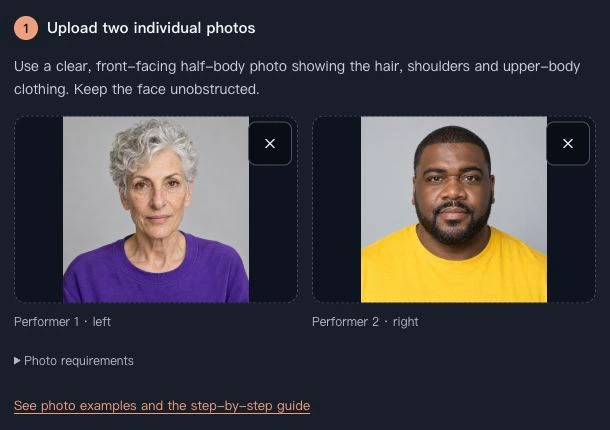
Once your photos are ready, open the Wipe Me Down AI dance generator and upload each portrait to its matching left or right role slot.
2. Keep the kitchen or change the background
Original Kitchen keeps the reference kitchen. Cozy Living Room, Garage Party and City Rooftop replace it with the selected setting. The same dance and original soundtrack are used. You do not need to write a prompt.
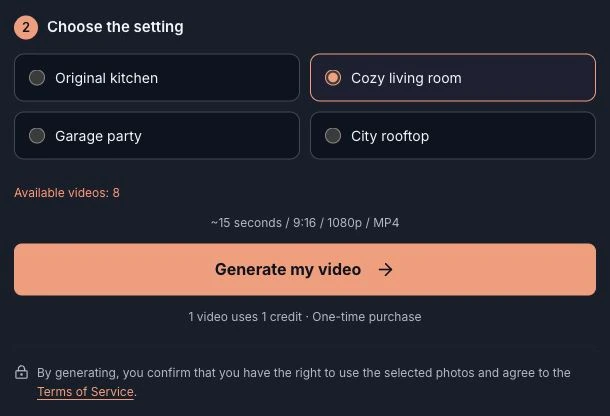
3. Check your choices and generate
Check the two roles and highlighted background, then select “Generate my video”. Sign in if needed. If you need credits, choose a pack and confirm generation again after returning from payment. Payment does not start a video automatically. Each generation uses one credit.
View packs and video credits · Terms of Service
4. Watch and download in My creations
Once submitted, follow progress in My creations. You can leave while it processes; avoid submitting duplicates. Open a completed work, use the play button to check it, then select “Download MP4”. Only the signed-in author can view the work page. Download before the displayed expiry date; videos are kept for 30 days.
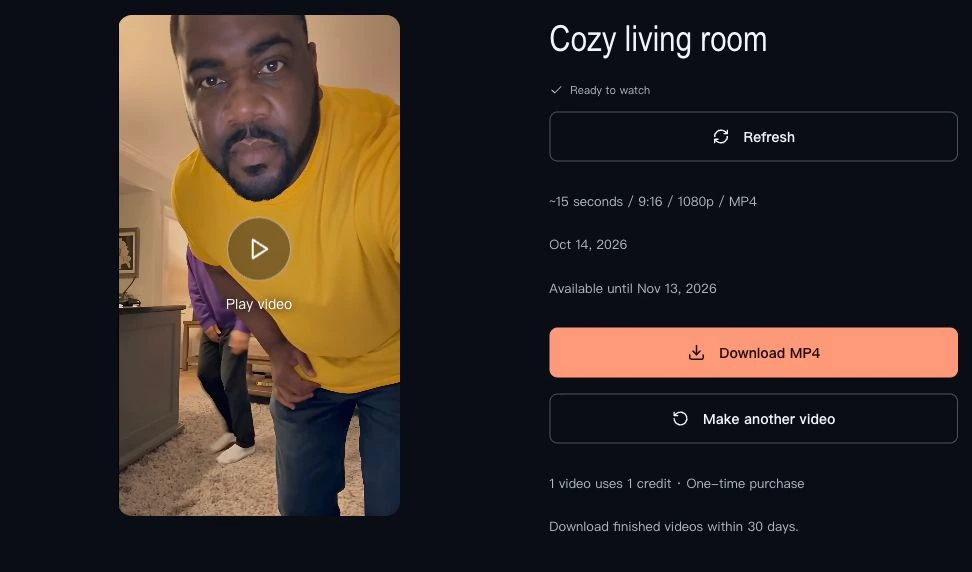
If the result needs improvement
- Face looks different: try a clearer, closer, front-facing half-body photo with fewer obstructions or filters.
- Roles look reversed: check the upload slots. Photo 1 is the starting left role; photo 2 is the starting right role.
- Confirmed generation failure returns the credit. Processing is not a failure. Choosing to make another video uses another credit.
Check faces, hands, clothing and movement before sharing. No CapCut template or recording of your own dance is needed.
You can now make your Wipe Me Down AI video: upload your two half-body photos, choose the kitchen or another background, and check your choices before confirming generation.